The desktop app
umcf-gui shows a case in 3D and runs the same commands as umcf-cli: every change it makes to
the case is a command of the registry, so it is in the edit
history and can be undone, and a script can do the same. Selecting is a command too (in the
journal, not in the undo history); what the view shows, the camera and the theme are the
window's own.
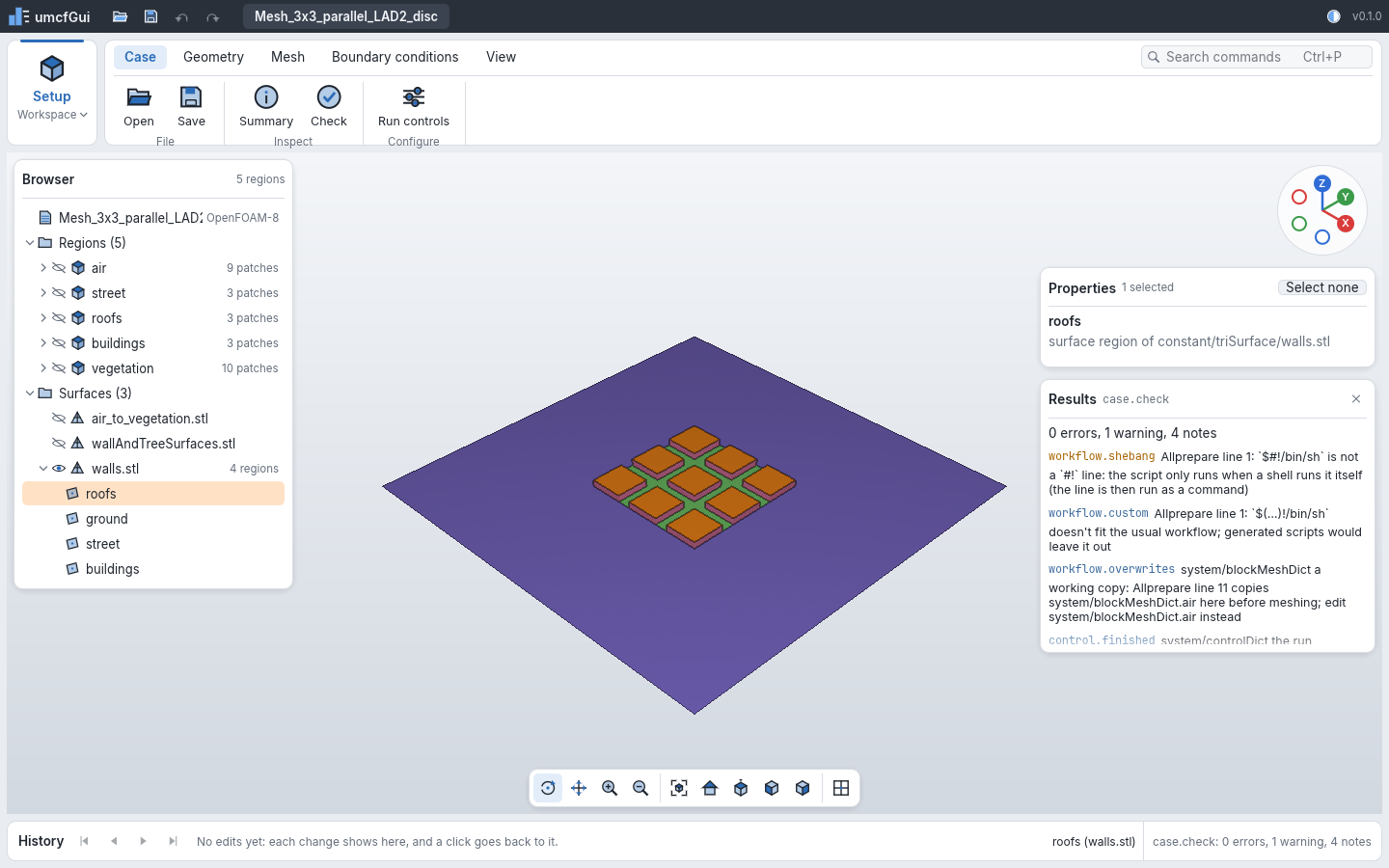
umcf-gui path/to/case
umcf-gui path/to/case --show walls.stl --cmd 'select.set={"items": [{"surface": "walls.stl", "solid": "roofs"}]}'
umcf-gui path/to/case --size 1440x900 --screenshot shot.png
| Option | Does |
|---|---|
<case> |
Opens the case (case.open) |
--cmd '<id>=<json>' |
Runs a command once the case is open, as umcf-cli run --cmd does; repeat it for more |
--show <name> |
What the 3D view shows first: a mesh region or a surface (walls.stl); repeat it for more |
--open <id> |
Opens a command's card at the start, as its ribbon button does (--open bc.set) |
--dark |
The dark theme |
--size <w>x<h> |
The window's size (default 1440x900) |
--screenshot <file.png> |
Writes a PNG of the window once it has drawn, then quits; fails without one when the case, a --cmd or a --show name does |
The window
- The bar along the top: open, save, undo and redo, the open case (
•when it has unsaved changes), and the theme. - The workspace (on the left of the ribbon): Setup holds what there is today. Run and Results are planned. Every workspace works on the same case and selection; only the ribbon changes.
- The ribbon: the commands in tabs and groups (Case, Geometry, Mesh, Boundary conditions,
View). A command that can't run now is grey, and its tooltip says why. A command that needs
parameters opens its card on the right: what it takes, and its parameters as JSON
(
{"endTime": 7200}); OK runs it. The checks and Summary run at once. Commands without a place of their own are in a More group of their tab: Workflow description and Write workflow description on Case, Tree crowns on Geometry. - Search commands (Ctrl+P or F1): every command, filtered as you type; Enter runs the first that can run.
- The browser (left): the case's regions and their patches (type and number of faces), and its STL surfaces and their regions. The eye says whether the 3D view shows a region or a surface. A click selects a patch or a surface region; Ctrl+click adds it or takes it out. A right click on a region, a patch, a surface or a surface region shows it as surfaces, wireframe or points, or hides it, and sets its opacity (display modes). A patch's menu has its patch groups too. The row says how it is drawn when that isn't the default, and Reset draws it as what it is part of again. What is hidden is not picked.
- The 3D view: the meshes' boundary patches or the surfaces, each patch in its own colour,
the selection in orange (see 3D scene and selection). Drag to turn the view (or
pan, with the navigation bar's Pan); a right or middle drag pans; the wheel zooms. A click
selects what is under the cursor (
select.pick), Ctrl+click toggles it, Shift+click adds it. The name of what is under the cursor shows in the history bar. - The axis triad (top right): click an axis to look along it.
- The navigation bar (bottom): orbit, pan or Box select, zoom, fit, the standard views, the faces' edges, Pick faces and Select through.
- Pick faces: a click then picks the mesh face under it rather than its patch (Ctrl+click adds or takes away one, Shift+click adds one), drawn in the selection colour.
- Box select: a drag draws a rectangle that selects what is in it (
select.rect): the patches, or with Pick faces the mesh faces. Shift adds to the selection, Ctrl takes away. A click still picks, and a right or middle drag still pans. - Select through: the rectangle takes everything in it, hidden too (the faces whose middle is in it), not only what is seen.
- Properties (right): the selected patches with their type, size and each field's boundary condition for them (by name or patch group; one given by a pattern is matched by the case check, not shown here), and the picked faces, counted by region.
- Results (right): the last command's message and its diagnostics, and for
workflow.showandworkflow.importthe description (its problems and the import's notes first, then the settings and the regions); it opens when a command reports some. - History (bottom): one chip per edit that can be undone, the marker after the last one done; a click on a chip undoes or redoes up to it. When there are more than fit, the ones nearest the marker are shown, with the number left out on each side.
Open (Ctrl+O) asks for the case's folder (the one holding system/, constant/ and the time
directories) in the system's own dialog, over the app's window: the Windows file dialog, the
macOS open panel, and on Linux the desktop portal (xdg-desktop-portal, which GNOME, KDE and
most desktops run) or else zenity. A folder that doesn't open (not a case, or the open case
has unsaved changes) brings up the Open card with the path and why, to change it or to open
anyway ("discard": true). On a Linux system with neither dialog (a window manager without a
desktop, and no zenity) the card asks for the path instead; a desktop whose portal service isn't
running shows no dialog at all, so install zenity or xdg-desktop-portal there.
umcf-gui <case> opens a case from the command line on every system.
Shortcuts come from the commands: Ctrl+O open, Ctrl+S save, Ctrl+Z undo, Ctrl+Shift+Z redo, F7 check. Escape closes the parameter card, the condition card, the results and the search.
Long work
Opening a case, the ribbon's commands without parameters, a command card's OK, the Set of
the boundary condition, patch and new patch cards, going back or forward in the history bar, and
reading the meshes and surfaces the 3D view shows run beside the window, which keeps drawing.
What takes more than a moment shows a card over the 3D view with what runs and for how long.
Work that only reads (opening a case, the checks, the summary, reading what the view shows) has
Cancel: the case's files are read no more, the work stops, and the case is as it was (a case
being opened isn't opened; the one open stays). Work that changes the case (a save, an edit, an
undo) runs to its end, and the window doesn't close before it has. A card whose Set runs stays
open behind the busy card: it closes when the command worked, and shows the error when it
didn't. Nothing else starts while it runs: what is asked meanwhile is refused, and the results
card says so (a command card stays open, to run again); a folder picked to open waits for it. A
reading of the 3D view that hasn't started yet gives way to a command asked at the same moment,
and follows it. A check of a 16-million-cell mesh, or reading all five regions of a big case,
can take a while: that's when this card shows. A case named on the command line
(umcf-gui <case>) is opened before the window shows.
Patches
Edit patch (on the Mesh and Boundary conditions tabs) opens a card for the selected
patches, filled from the first: the name (one patch at a time), the type, typed or picked from the
suggestions under it, the groups, other entries (neighbourRegion air), and what each patch is
now. Set sends only what was changed, as patch.set: a renamed
patch stays selected, and its field files follow.
New patch (on the Mesh tab) opens a card that prepares a patch, as
patch.create: the name, the type, the groups, and the faces: those
picked in the view (chosen when faces are picked), or, of the selected patches, those whose centre
is in a box (from x y z, to x y z) or within a distance of a surface of the case (one of its
solids, or all of it). Prepare writes the face set and adds the
patch to the dictionary of the patches prepared on this mesh; the mesh gets them when
createPatch runs once with that dictionary.
Boundary conditions
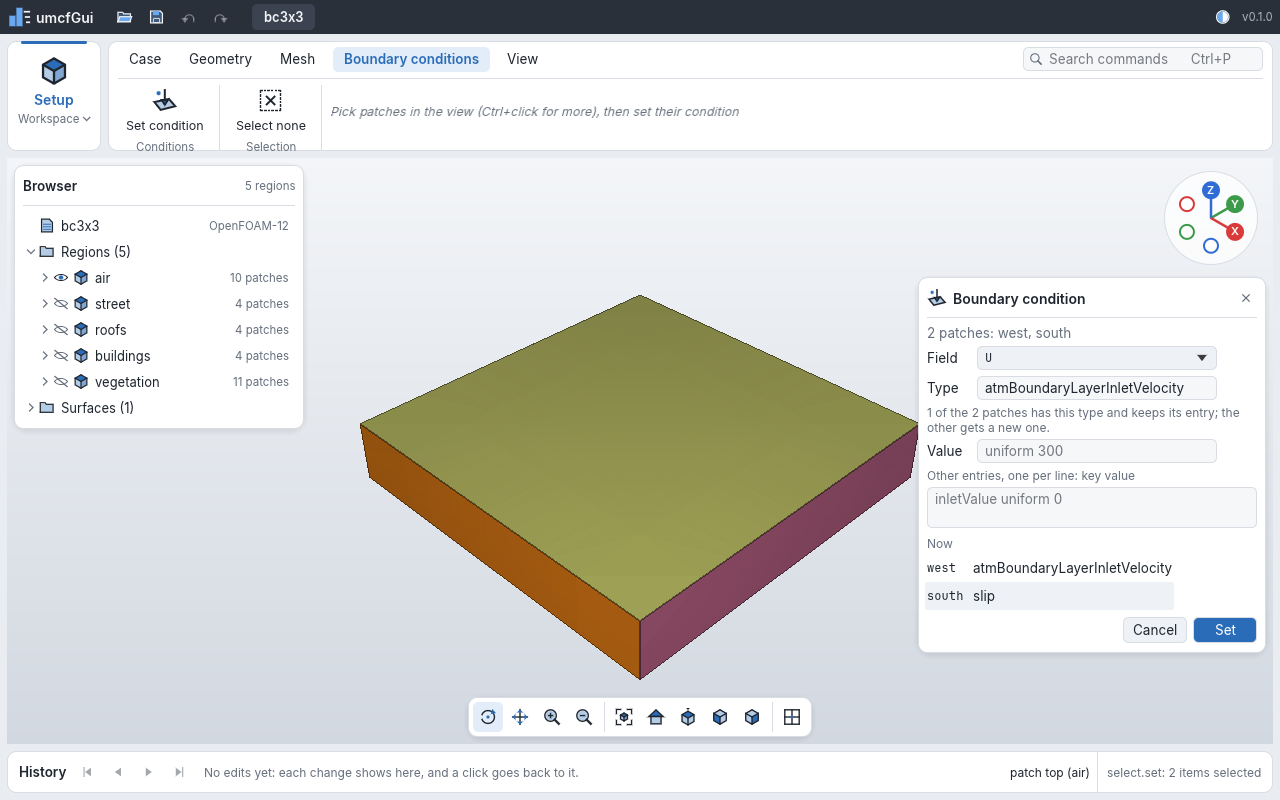
Select the patches in the view or the browser (Ctrl+click adds one), then Set condition on the Boundary conditions tab. The card shows:
- the field: the fields every selected patch's region has at the start time,
U,T,p_rgh,pand the turbulence fields first; - the type, typed or picked from the suggestions under it: OpenFOAM's common types and the solver's own for the field (scalar or vector) and the case's OpenFOAM version, from the catalog. Any other type can be typed; the case check judges it;
- the value (
uniform 300,uniform (2 0 0)), filled in from the first patch. Left as it is, it goes only to patches that get a new entry, and a patch keeping its entry keeps its own value; changed, it goes to every selected patch; - other entries, one
key valueper line (inletValue uniform 0); - what each patch has now, and whether the entries already there stay (the same type) or the patch gets a new entry.
Set runs bc.set for the selected patches. It is one
edit in the history, undone with Ctrl+Z, and the results card lists what the case check finds
about the new conditions.
Limits
- The 3D view is drawn by the CPU renderer, at the window's resolution (at half of it while the view turns). It keeps up with surfaces and meshes of a few hundred thousand boundary faces; a GPU view comes later.
- A command's parameters are typed as JSON, apart from boundary conditions, which have a card of their own; forms for the others come with meshing.
- Cancel stops reading a mesh's ASCII
pointsorfacesand field files within a megabyte, but a file read whole (binary meshes, the mesh check's) only once it is read; the card shows the seconds a job has run, not how far it is. - The window reads the case's files when it needs them, not when they change. An STL copied
into
constant/triSurfaceshows in the browser after the next command; a file changed outside the window shows when the case is opened again. A scene that failed to build (a mesh not written yet) is read again by the next command or Fit.